Step by Step Tutorial | How to USE COMBOBOX | How to use Additem

 1. Open Visual Basic 6.0. Then choose the combobox tool as shown in the ss.
2. Draw a line in your main form to create a COMBOBOX
------------

3. AFter you draw the combobox in youre form. Double Click on empty part of youre main form. Not the ComboBox

 4. Then Code the following  Combo1.additem "FOOD"" | Combo1 is the name of youre combobox.

5. Then Run. Then See FOOD :)

------------------

PLEASE REPORT A DEAD-LINK

------------------


Vb 6.0 | Visual Basic Tutorials


Easy! | Comment | Follow Us on G+ | Like us on Facebook

Step by Step Tutorial | How to create .exe file in Visual BAsic 6.0 | Basic Tutorial

 1. Assuming you are done making youre program. And you want to make an .EXE FILE in visual basic 6.0 | Basic Tutorial

 2. Hit FILE , that is on the upper right corner of the screen.
3. Then, Look for Make Project1.exe. See Screenshot. Hit that!.
 3. A pop up will appear, ask you where you would like to save the exe file. Choose desktop. And hit OK.
 4. After saving, look for project1.exe in desktop. And open it.
 5. You've just done it. Perfect! Easy as 1,2,3.


Step by Step Tutorial | Hello World in Visual BAsic 6.0 | Basic Tutorial

1.Creat the Program. Using Visual Basic 6.0.
2.Put one TEXTBOX and one COMMAND BOX 
3. Then, we only put code at command (ENTER) button.
#theCodes
Private Sub Command1_Click()
Text1.Text = "Hello World!"
End Sub
4. We are DONE! Hit run, or press F5.

Step by Step Tutorial | How to use Menu Editor In Visual BAsic 6.0

1. Open Visual Basic 6.0
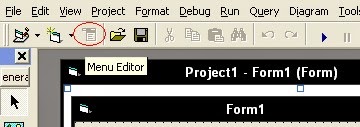
2. Locate Menu Editor

 3. At Caption, Type the File(Any u want)
4.At name, put " mnu " before u input the caption. So in this i use mnuFile  (Avoid Spaces in NAME)
5. As you type file in the caption, you'll see in a wide white space what have you typed in the caption.
 6. EXPLORE. Add as many as you want. But dont forget to put mnu in NAME before the caption name.
 7.Here is the result of How to use Menu Editor in Visual Basic 6.0 | Step by Step Tutorial